Audio & MIDI Phrases
Bring in a recording or a MIDI part, make it fit the song, and choose what should repeat.
Add audio to a Scene
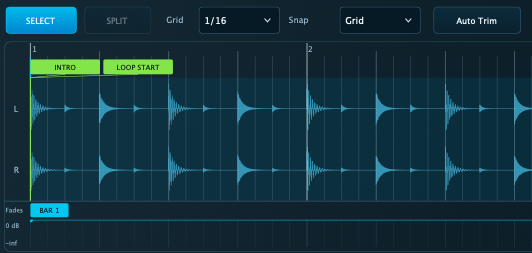
Select the Scene you want to work in, click + Phrase and choose Add Audio… to open a WAV, AIFF or MP3 file. Select the new AUDIO row to see its waveform.
Try Main 1–2 first so you can hear the recording through StagePhrase’s main stereo output. Set Tempo Mode to Original to hear it at its recorded speed.
Shape the recording
Drag INTRO and END to choose what plays. Put BAR 1 on the first downbeat. If you want a count-in or a pickup, leave it before BAR 1 so it stays part of the phrase.
Set LOOP START and LOOP END around the part you want to repeat. Use Fit Loop to see the join more closely, then listen through it. If there’s a click at the join, a short loop crossfade can help.
Add a MIDI part
To bring in a MIDI file, click + Phrase and choose Add MIDI… from the menu. In the import dialog, choose Start at Bar 1 to skip leading empty bars, or Preserve Original Position to keep the placement from the file. Click Import and open your MIDI file. Choose Add Empty MIDI if you want to write a part from scratch.
MIDI needs an instrument to make sound. Set the phrase’s Output and MIDI Channel for the instrument you want to hear.
Edit the notes
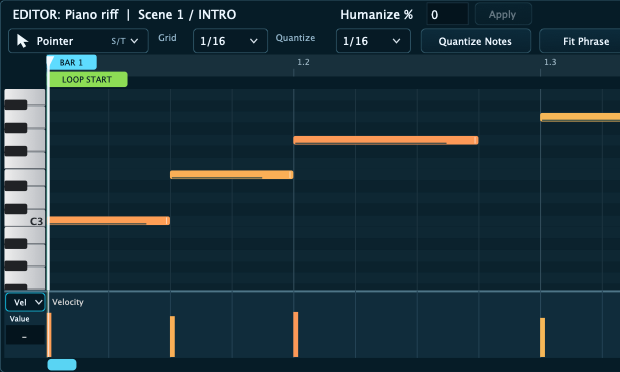
Select the MIDI row to open the piano roll. Use Pointer to move or resize notes, and Pencil to add notes. Set Grid to a useful division, such as 1/16 for a busy part. Use the Velocity lane below the notes to bring an accent forward or soften a hit.
Drag END to set the length of the phrase. If you only want part of it to repeat, move LOOP START and LOOP END around those bars.
Play once or keep looping
Select the phrase and click PLAY. For a quick check, set Quantize Start to Off in PLAYBACK. Click STOP PHRASE when you’re ready to stop that part.
Set Repeat to One Shot for a fill that plays once. Use LOOP to turn repeating on. Choose Infinite in Repeat for a backing part that should keep going. Only the region between LOOP START and LOOP END repeats. Leave space between LOOP END and END if you want an outro when you click EXIT LOOP.
When the part sounds right, set Quantize Start to 1 Bar if you want the next launch on a barline. Start your timing source first and listen to the entry against the song.
Host Tempo, Network Sync and MIDI Clock →
