MIDI routing and channels 1–16
Send each MIDI part to the instrument you want to hear.
Output choices
Select the MIDI phrase or Stack layer, then check Output. Use MIDI Receiver to reach a StagePhrase MIDI Receiver in the same host. In a VST3 host, use Host MIDI Output to wire the part in the host. Choose a named MIDI destination when you want to send directly to an available device.
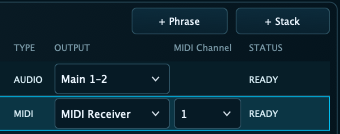
MIDI channels 1–16
Choose a MIDI Channel for the part and use the same channel on the receiving instrument or Receiver. For example, send bass on channel 1 and strings on channel 2 so each part goes to its own sound.
MainStage AU
Load StagePhrase in the instrument slot. On another strip, add StagePhrase MIDI Receiver in the MIDI FX slot above the instrument you want to hear. Set the phrase’s Output to MIDI Receiver and match the channel on both sides.
Gig Performer VST3
Choose Host MIDI Output and connect the StagePhrase MIDI output to the target instrument in Wiring view. Use channel filters before the instruments when several parts share the connection. Connect their audio outputs so you can hear them.
Avoid duplicates and loops
Test one part at a time. If a note sounds twice, check whether both your keyboard and a second MIDI route reach the same instrument. If notes hang, use PANIC and check for a MIDI connection feeding back into StagePhrase.
Send a phrase to external hardware
Select the synth’s MIDI port if it’s available under Output. In Gig Performer, you can also wire Host MIDI Output to a MIDI Out block for that synth. Match its receive channel and bring its audio back through your mixer or interface.