Quick Start
Open StageChord
Quit MainStage or Logic Pro, then run the StageChord installer from Downloads. Reopen your host and choose a software instrument you can already play from your keyboard. A plain piano sound makes it easy to hear which notes StageChord adds.
Add StageChord to the MIDI FX slot above that instrument. StageChord sends notes to the instrument, which makes the sound. If you can’t find the plug-in or the instrument is silent, see MIDI & Host Setup.
Play your first chord
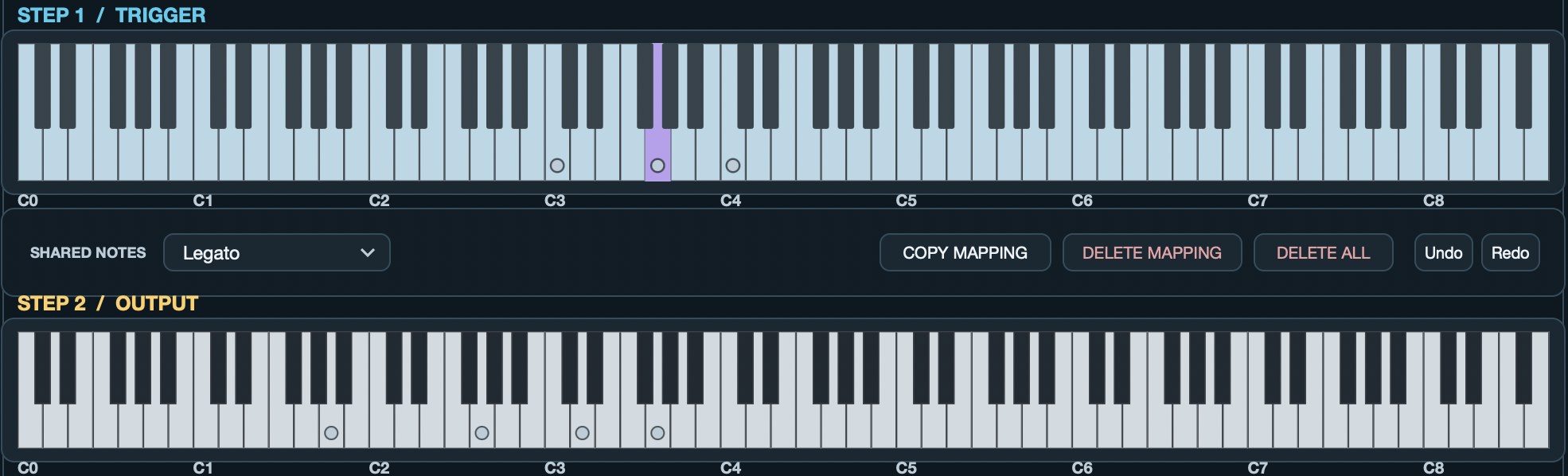
Open Key Trigger. Under Step 1 / Trigger, click a C on the upper keyboard. On the lower keyboard, under Step 2 / Output, click C, E and G. The upper keyboard picks the key you’ll press; the lower keyboard sets the notes you’ll hear.
Play the trigger C on your controller. If you hear a single note, try the C in the next octave and check which key is selected on the upper keyboard. Once you hear the chord, save the MainStage concert or Logic project to keep the mapping.