Creating & Editing Chords
Change the notes under one key
Switch off Live Lock before editing. In Key Trigger, select the trigger key on the upper keyboard. Click a note on the lower keyboard to add it, or click it again to remove it. Play the trigger key to hear the whole chord. Each trigger key has its own set of notes.
Save extra notes for a chord you play
In Chord Detect, play the chord you want StageChord to recognize. Once it appears under Detected Chord, click the extra notes on the Played + Mapped Notes keyboard. StageChord saves those notes to the mapping as you add them.
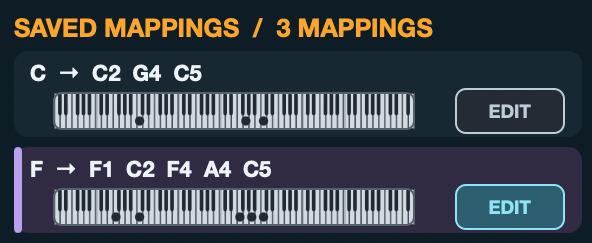
If you’d rather enter the input chord on screen, click Manual Input, choose the input notes and click Use This Chord. Add the output notes and click Save Mapping. To revise a saved mapping, click its Edit button, make your changes and click Save Changes.
Balance the notes by ear
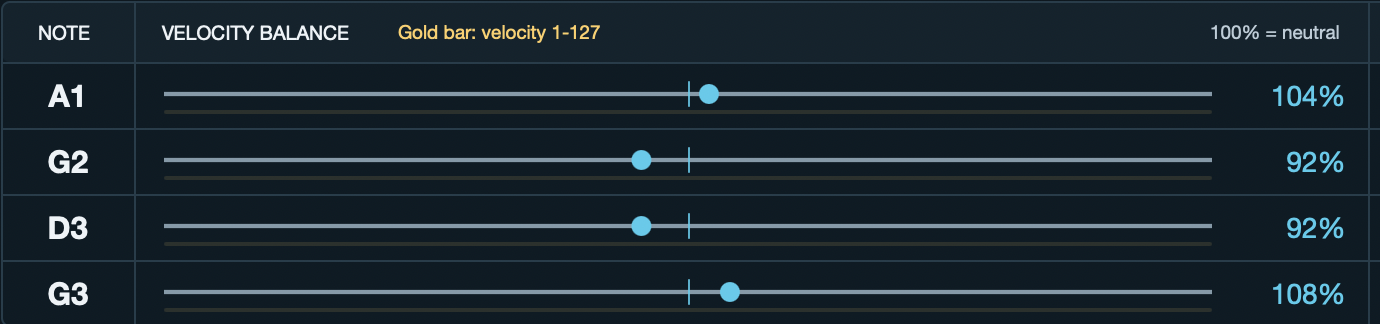
If one note sticks out, find its row under Velocity Balance and drag the slider to the left. Velocity is how hard the instrument is told to play a note. On a piano patch, lowering an inner note can give the melody more room without making the entire chord quieter.
In Key Trigger’s Balance / Timing section, 100% leaves the note’s velocity unchanged. Try a small move, then play the trigger key again at your normal playing strength. If you want the chord to open up like a light strum, use Timing to stagger the notes a little.
Keep common notes ringing
Say you move from C major to A minor and both voicings contain the same E. Under Shared Notes, choose Legato to keep that E sounding through the change, or Retrigger to hear it played again. Smart Legato keeps the shared note unless you play the next chord much harder.
Save the concert or project when you’re happy with the result. Turn Live Lock on if you want to protect your mappings during a show.